3. Interface overview
EasyNMR opens in a web browser window by opening https://easy.csdm.dk.
3.1. Layout
The web page is divided into three sections:
The Toolbar on the top
The Workflow on the left
The Object Properties on the right.
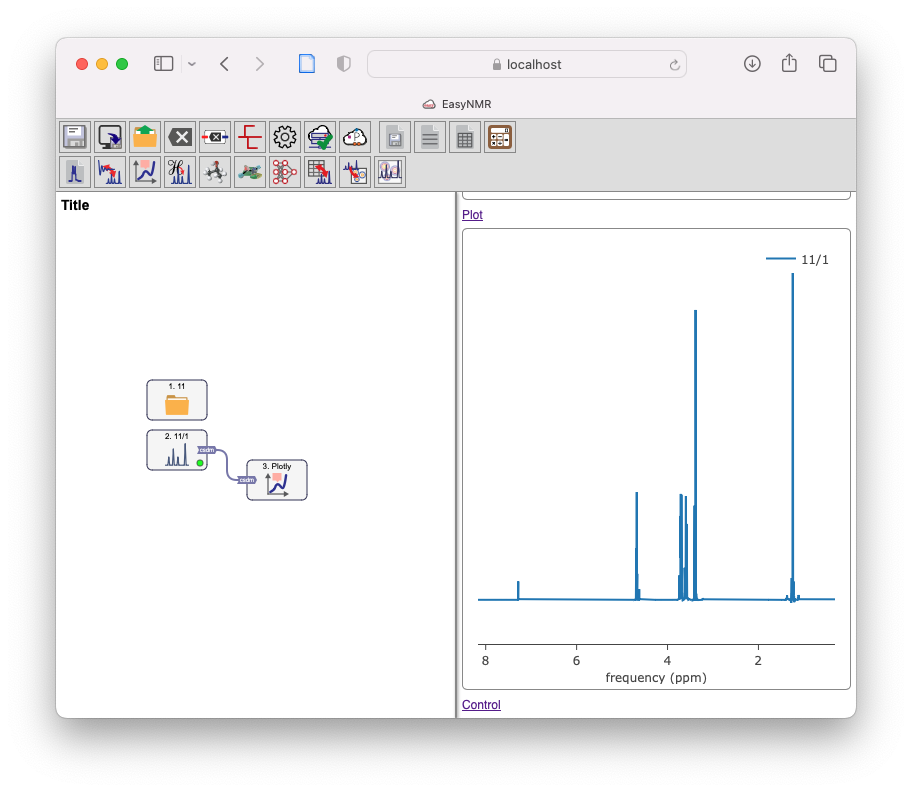
Basic layout of EasyNMR
EasyNMR opens in a web browser window by opening . The web page is divided into three sections:
Menu/buttons |
|
Flow layout |
Object Properties |
In the Workflow, each data or module object has a graphical component (icon). The complexity of a workflow arises from a number of modules that are connected to each other. The properties of each object may be seen in object properties on the right. You can double click on each object to highlight its Object Properties window. For example, a Plot object has a figure in its Object Properties window; while a Folder object shows the files it contains. Data and Module objects have anchors that could be connected to each other – if they are compatible. You can reorganize objects by dragging them and connect them to each other using the Connect command in the toolbar.
You may load a new workflow (a file with the .easy file extension) by drag’n drop onto the left-most area of the EasyNMR window - the Workflow.
3.2. Interface functions
In addition to objects, you can use the following interface functions in using Easy NMR.

|
Save |
Saves the workflow |

|
Export |
Exports the worflow to an easy file |

|
Open |
Opens a file containing data objects or workflow |

|
Clear |
Clears the workflow |
|
Delete object |
Click on an object and then push Delete to delete an object |

|
Connect objects |
Click on Connect to enter connect mode for linking objects Press this button again to exit connect mode |

|
Settings |
Change default settings according to your preferences |

|
eServer |
Enables logging into a remote server for simulations and computations |